Android, iOS, and macOS apps: Deploy managed configurations to target devices
Some apps come with settings and restrictions that can be used to configure them to best suit the users needs. Managed app configurations ensure consistency across all app instances in your environment, and reduce unnecessary support calls. Your organization can have a default collection of settings for selected apps, or multiple versions of settings, each applicable to a specific user role or requirement. You can, for example, configure Microsoft Outlook for use with MS Office 365, and also for an on-premise MS Exchange server.
With KACE Cloud, administrators can configure and deploy app settings to managed devices. App settings are managed in the Apps Library. For example, you can use them to specify any of the following details:
- Email server name
- Users account type
- Security settings
- Locale
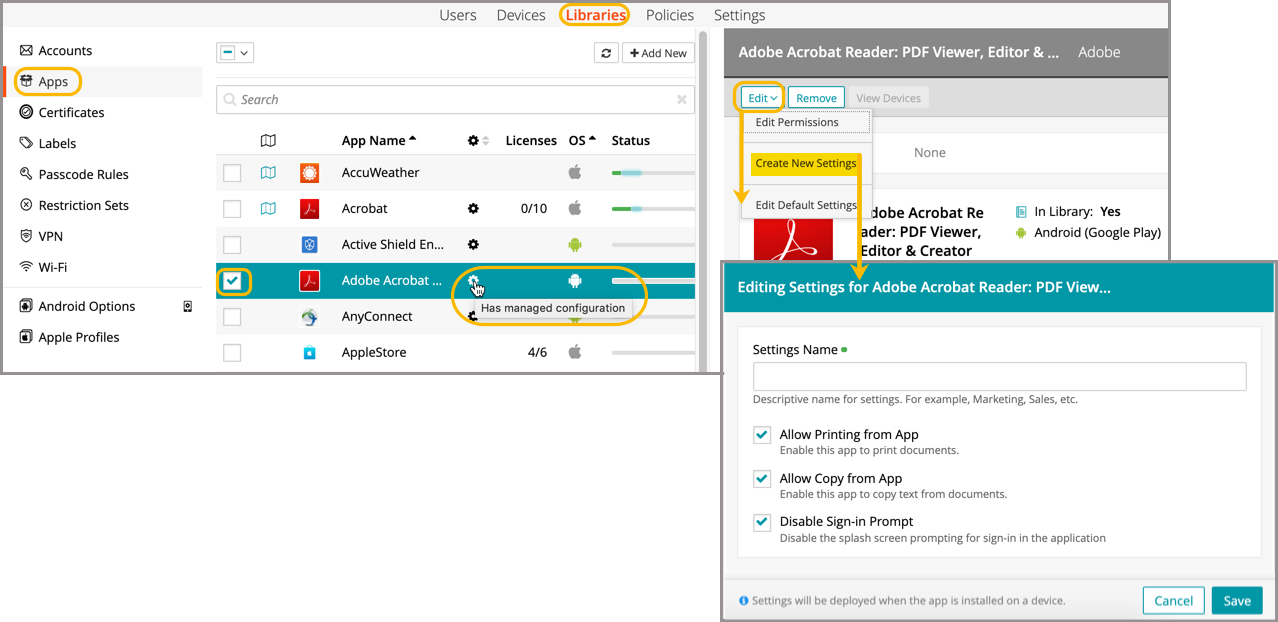
Apps that offer custom configuration settings are marked with a gear icon in the Apps Library:
|
|
NOTE: iOS and macOS apps that do not provide a discoverable AppConfig.xml file during upload to KACE Cloud may still offer the file, but it be manually retrieved and uploaded. Administrators can also create an AppConfig.xml file and upload it for a specific app. |
Start by creating custom configuration settings in the Apps Library. Next, assign labels to the devices on which you want to manage these apps. Administrators can deploy app configuration settings to managed devices using Policies. These settings are rolled out automatically to managed devices, without end-users having to take any action.
To apply custom app configurations to managed devices:
- Select the Libraries tab in top navigation.
- Click the Apps icon.
- Select an app that includes configurable settings.
Such apps are labeled with a gear icon in the list. For example, select Microsoft Outlook.

- Edit the app's settings:
- In the Editing Settings view on the right, click Edit.
- To edit any of the available group of settings, including the Default Settings, select it in the menu that appears.
To create a new group of settings, click Create New Settings.
- Make updates to the applicable fields.
To configure Microsoft Outlook, apply the following settings:
- Office 365
- Settings Name: Descriptive name for the settings. For example, Marketing, Sales, as applicable.
- Account Type: ModernAuth
- Email Address: %user.emailaddress%
Alternatively, use a custom LDAP attribute, such as %UserCustomEmailAddress%.
- Server Name (only for Exchange): outlook.office365.com
- User Logon Name: Use the default value.
- Authentication method (only for Exchange): Use the default value.
UPN: %user.emailaddress%
Alternatively, use a custom LDAP attribute, such as %UserCustomEmailAddress%.
- On-premise Exchange server:
- Settings Name: Descriptive name for the settings. For example, Marketing, Sales, as applicable.
- Account Type: BasicAuth
- Email Address: %user.emailaddress%
Alternatively, use a custom LDAP attribute, such as %UserCustomEmailAddress%.
- Server Name (only for Exchange):The fully qualified domain name (FQDN) of the Exchange server. For example, mail.mycompany.com.
- User Logon Name: %user.emailaddress%
Alternatively, use a custom LDAP attribute, such as %UserCustomUserName%.
- Authentication method (only for Exchange): Use the default value.
- Office 365
- Click Save.
- Assign a unique label to all of the devices to which that you want to deploy newly configured app settings.
You can use a manual or Smart Label, as applicable. Manual labels can be assigned to each applicable device, while Smart Labels act as filters, identifying devices and users by their attributes. You can use either label type that best suits your needs.
- To deploy app settings to all devices that fit a certain criteria, for example, to all enrolled Android devices, create a Smart Label to target devices.
- To select specific devices that do not have any common properties, create a manual label, and assign that label to target devices.
- To assign a manual label to target devices, select them on the Devices tab, and then in the device view, on the Labels tab, select the manual label.
For more details about labels, see Using labels to group similar items.
- Create a policy to deploy newly created settings to labeled devices.
Policies allows you to targeting devices with specific configurations, such as custom app settings.
- Go to Policies in top navigation.
- Complete one of the following steps:
- Click Add New.
- Click an individual policy to open it, then click the Edit icon.
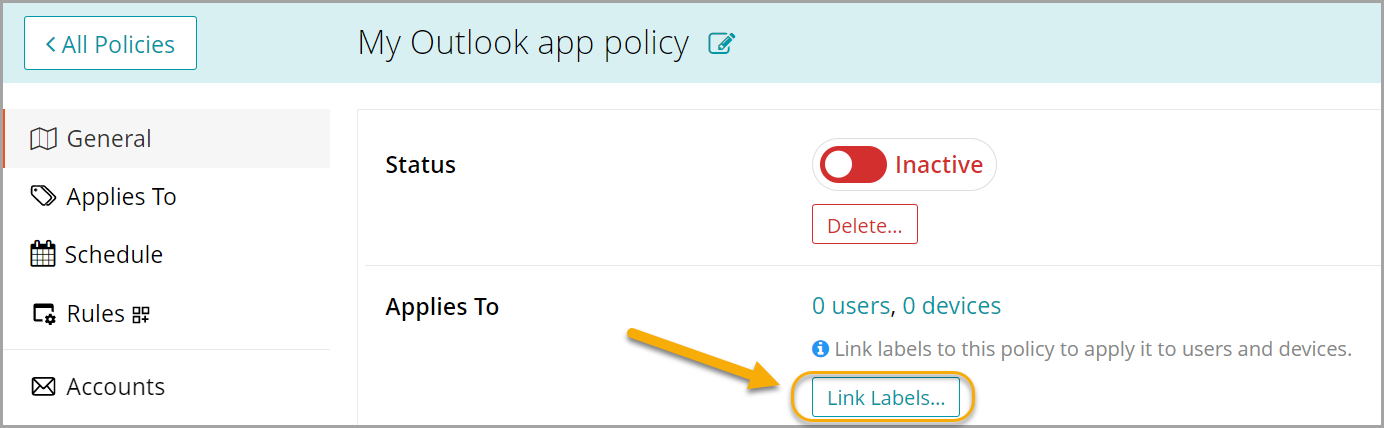
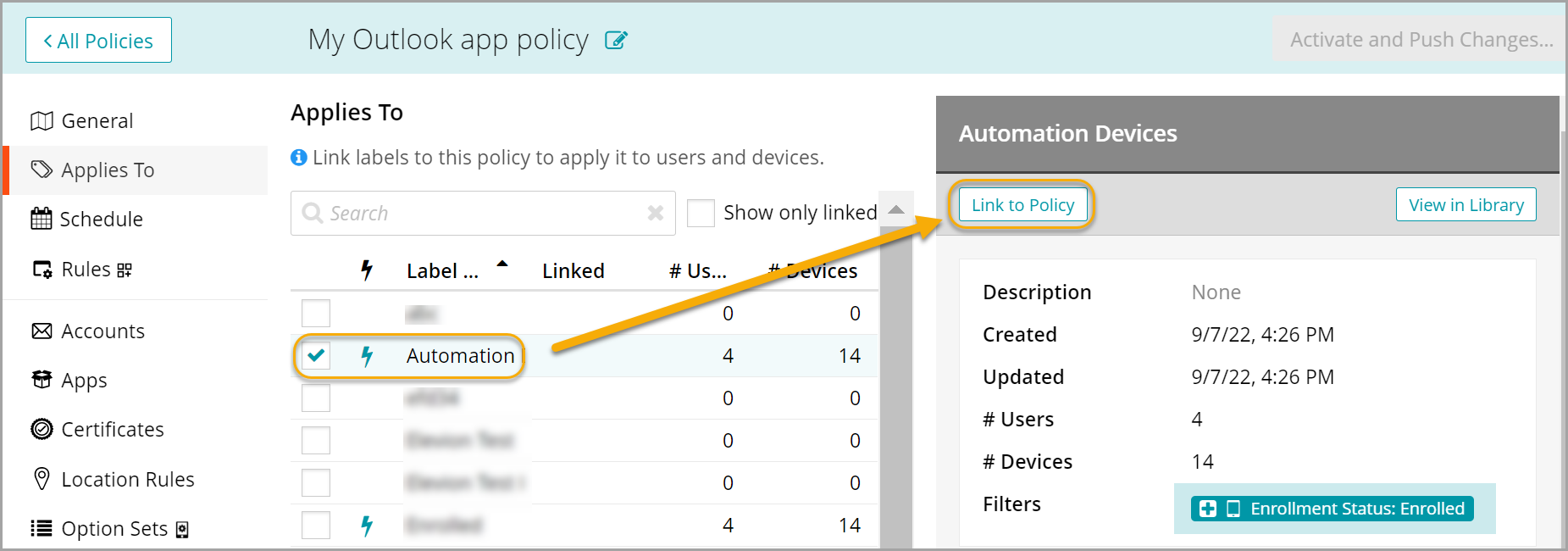
- In the General section, in the Applies To area, click Link Labels, and select one or more labels that point to target devices.
- In the list of labels that appears, select one or more labels, as applicable, and in the label view on the right, click Link to Policy.
- In the left pane, click Apps, select Microsoft Outlook, and in the Microsoft Outlook view on the right, click Link to Policy.

NOTE: Ensure you select the Microsoft Outlook app for the correct OS version.
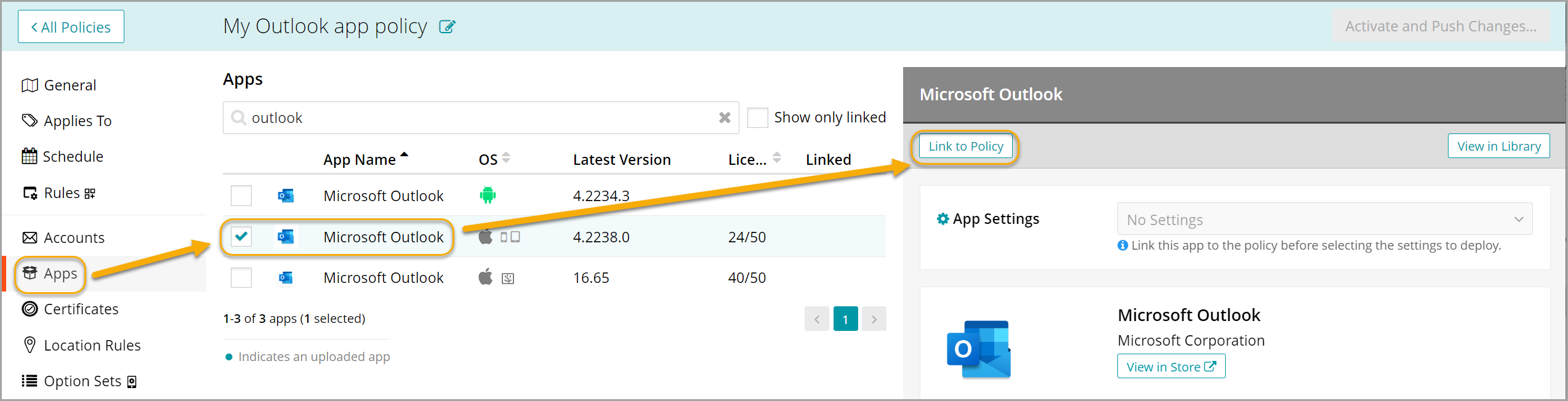
- In the Microsoft Outlook view, in the App Settings area, select the newly created settings that you want to associate with the policy.
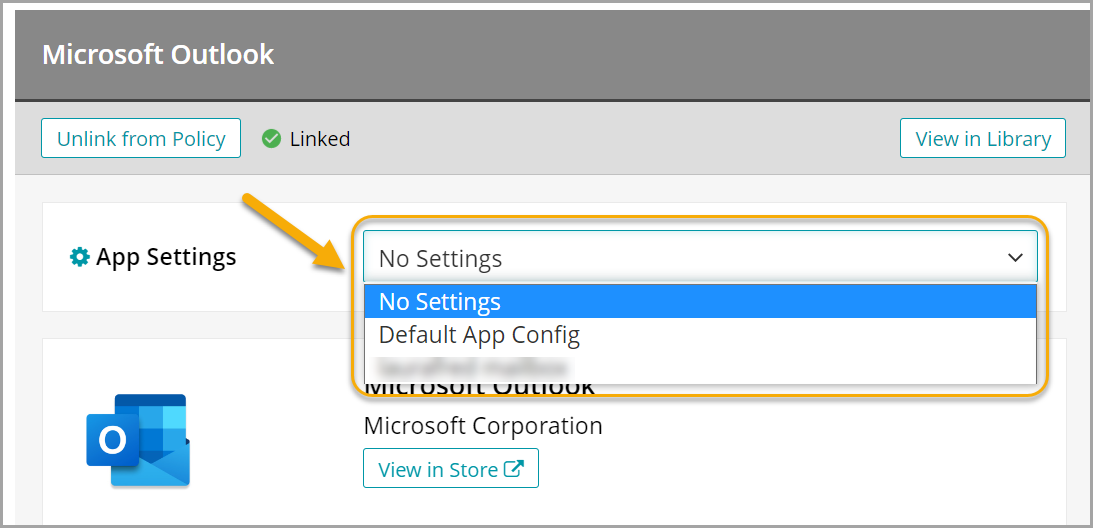
- In the Schedule section, specify the schedule for this policy, if applicable. For details, see Schedule policies.
- To activate the app settings policy, in the top-right corner, click Activate and Push Changes, then click Confirm.